Review completion
See which students have completed the assignment and which still have work to do.
 TinyNinzaFind a game
FOR TEACHERS & TUTORS · FREE ASSIGNMENTS
With TinyNinza, choose a maths, English, reasoning or memory game for your lesson. Create a classroom, assign practice for free and see who has completed it.
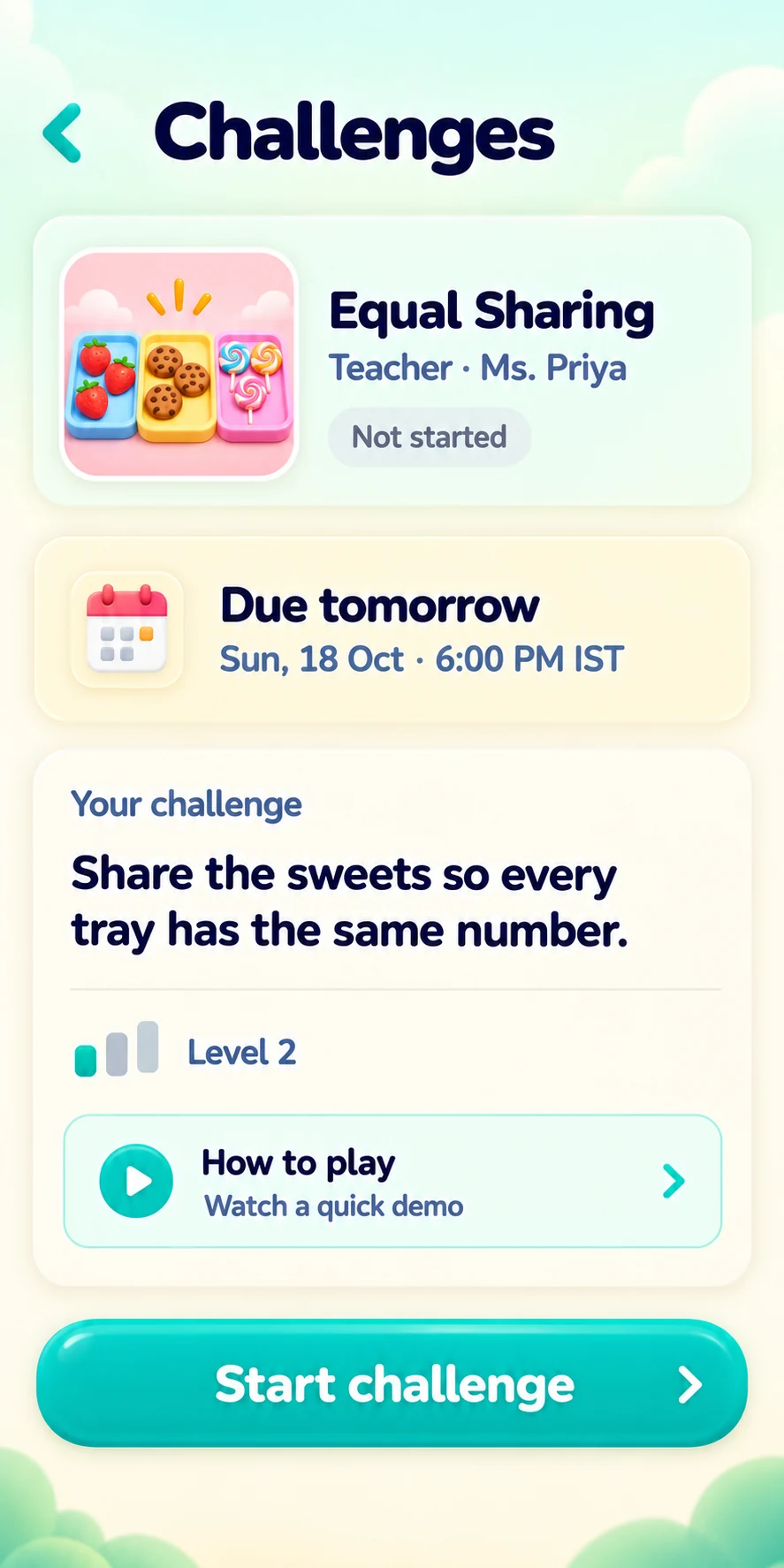
Student app · Receiving a teacher’s assignment
FROM YOUR LESSON TO THEIR NEXT CHALLENGE
Use TinyNinza with a school class or tuition group. Choose the topic first, then decide which game gives your learners suitable practice.
Set up a class with your free teacher account.
Create a new student, add someone you already teach, or link an existing learner with their student code.
Review the content grade and difficulty, then try the assignment content before publishing.
Choose the title and schedule, with a due date if needed. Students receive the game challenge in TinyNinza.
Teacher accounts and classroom workflows are free. Students can complete teacher-assigned challenges without a payment.
AFTER YOU ASSIGN
The teacher dashboard keeps assignment completion and recorded results with the task you set, so you have something concrete to follow up in class.
See which students have completed the assignment and which still have work to do.
See the game scores recorded for that assignment and use them to choose a follow-up.
Use the result to ask about a strategy or a difficult choice. Where enabled, view the assignment leaderboard.
LESSON EXAMPLES
Connect a game to the concept you are teaching. After play, bring the choices and reasoning back into the classroom conversation.
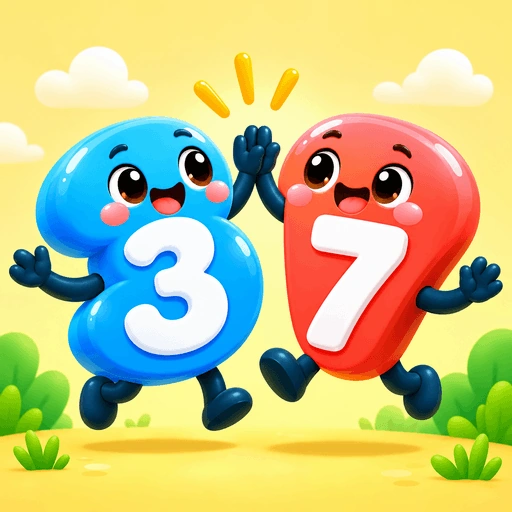
NUMBER BONDS · Grades 1–2
Find different pairs of numbers that add up to ten. Compare the combinations.
“How many different pairs can you find?”
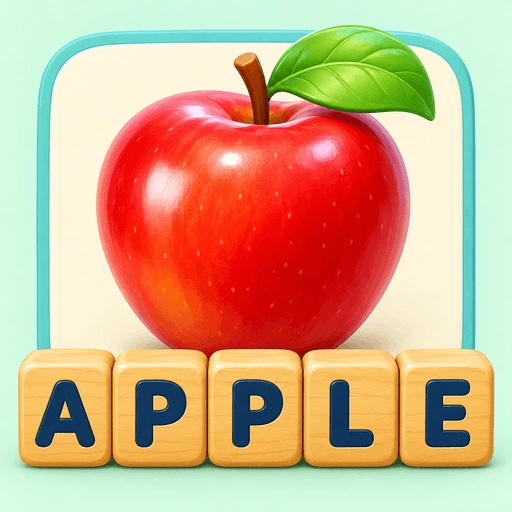
SPELLING · Grades 1–3
Name the pictured object, then choose and order the letters to spell it.
“Which letters helped you work out the word?”
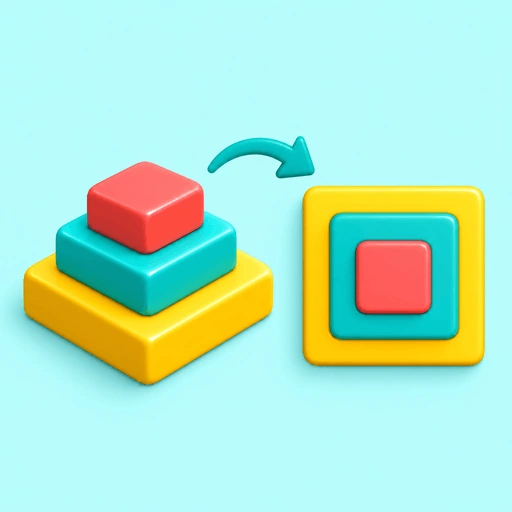
SPATIAL REASONING · Grades 1–5
Match the side view of a coloured stack with the way it looks from above.
“Which parts of the stack will you still see?”
USE IT IN THE WAY YOU TEACH
Play a round together. Invite students to explain a choice before you reveal the answer.
Ask the class which two numbers make ten, then compare the pairs they suggest.
Choose a game for a skill you have introduced and assign it as a challenge.
After practising spelling, assign a picture-word game and ask students to explain one clue.
Use the classroom tools with a smaller group. Choose games to suit your learners and topics.
Demonstrate a reasoning puzzle, then ask each learner to describe the rule they noticed.
WHAT YOUR STUDENTS SEE
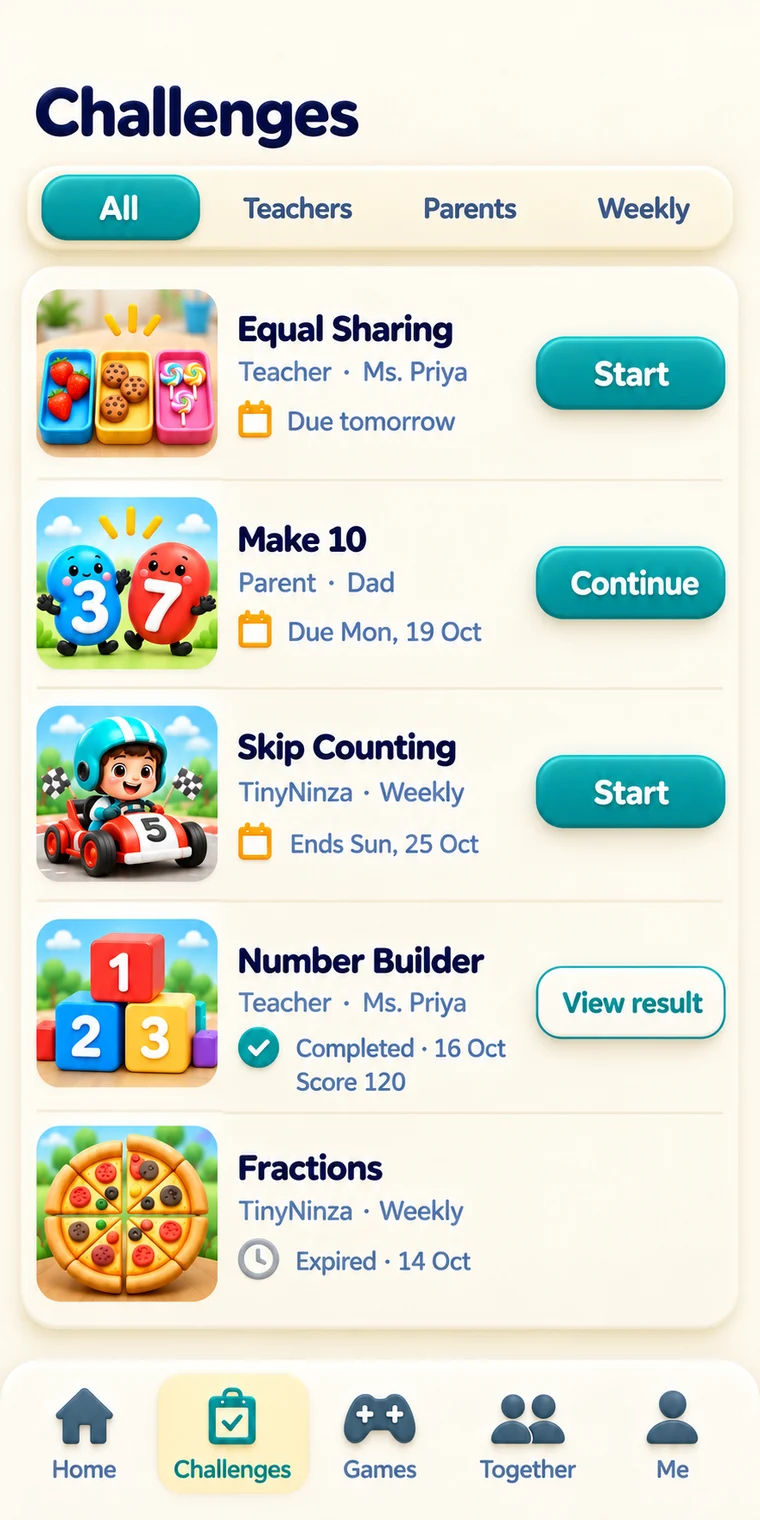
The student experience brings teacher, parent and TinyNinza challenges into one place. A teacher’s challenge includes its classroom context and the selected game.
TWO WAYS TO GET STARTED
Anonymous website practice does not save to a TinyNinza app account.
Browse learning gamesParents and students use the app. Teacher and school tools use their own dashboards.
PRACTICAL QUESTIONS
Yes. School teachers and tuition tutors can use the classroom experience to organise learners and assign game challenges.
Teacher accounts and classroom workflows are free. Students can complete teacher-assigned challenges without a payment.
Start with the skill and grade range, read the instructions and try the game. Use your judgment about what fits your learners.
You can explore the website game and its guide before choosing it for practice. Website practice is single-player and needs no sign-in.
Teacher assignments appear as challenges in the student experience. Share the appropriate classroom access details with your learners.
Create a new student, find a learner you already teach, or link an existing TinyNinza student using their student code. Review the student details before adding them to your classroom.
Yes. The teacher dashboard shows assignment completion and recorded results. A leaderboard is available for assignments where it is enabled.
Introduce the concept, use a game for practice, then discuss how students approached it. Choose a game with mechanics that fit the skill you are teaching.
Start with a skill your students are already practising.