Link your children
Add a child or link an existing TinyNinza student. Switch between your children to see their own challenges, settings and reports.
 TinyNinzaFind a game
FOR PARENTS · GRADES 1–5
52 learning games for Grades 1–5, with parent tools to guide practice. Link your children, set challenges, choose game settings and explore activity and monthly reports in the TinyNinza app.
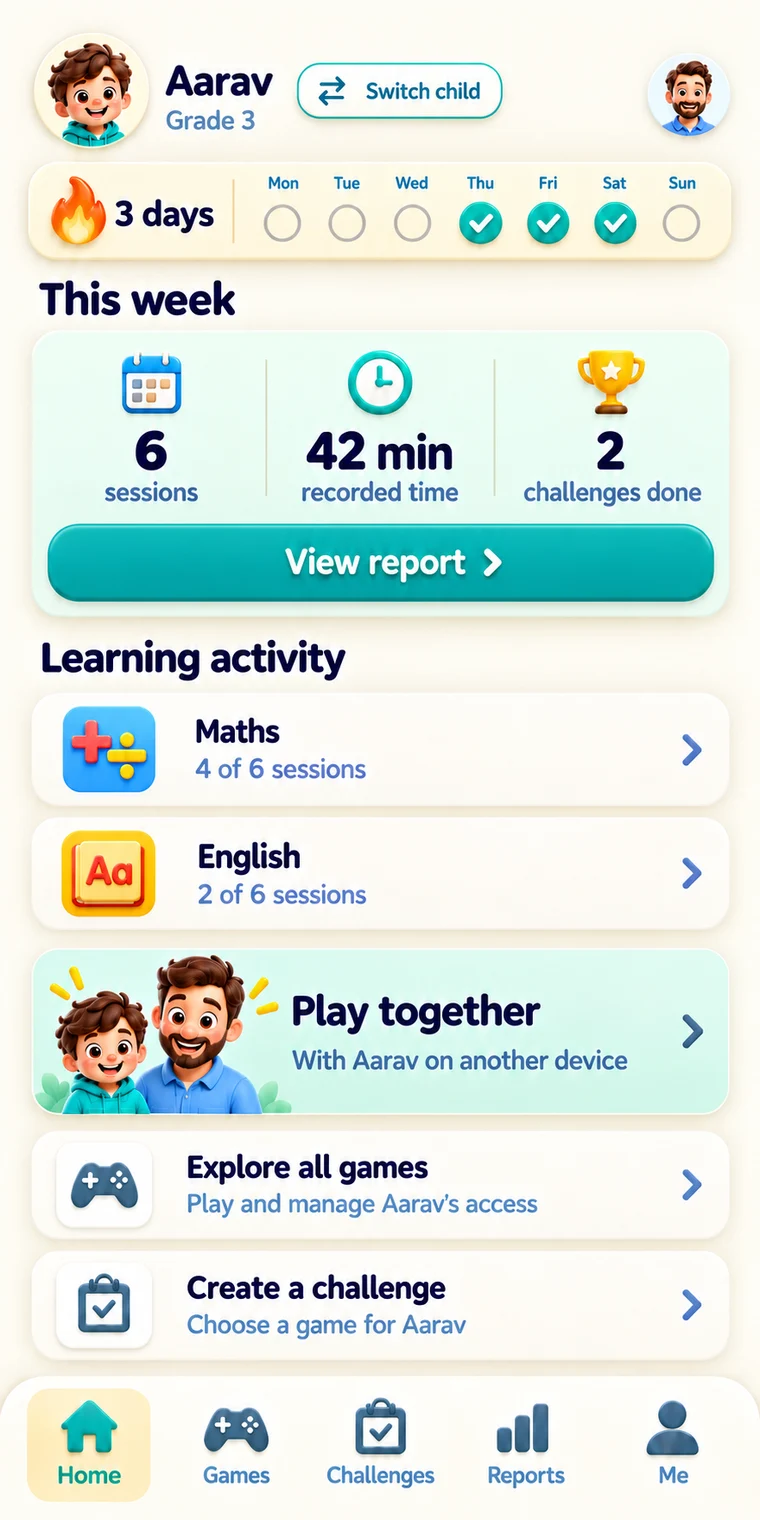
Parent app · Example home screen
YOUR PARENT TOOLS
Connect your children with learning games, choose the practice you want to set and see what they have been playing.
Add a child or link an existing TinyNinza student. Switch between your children to see their own challenges, settings and reports.
Set a game challenge, review content and difficulty, and choose which games are available to each child.
Explore recorded play, scores and subjects. Monthly reports add recorded answers, practised skills and ideas to try next.
PARENT CHALLENGES IN THE APP
Create a specific task for your child to complete in TinyNinza. Review the content and difficulty before sending it to their own device.
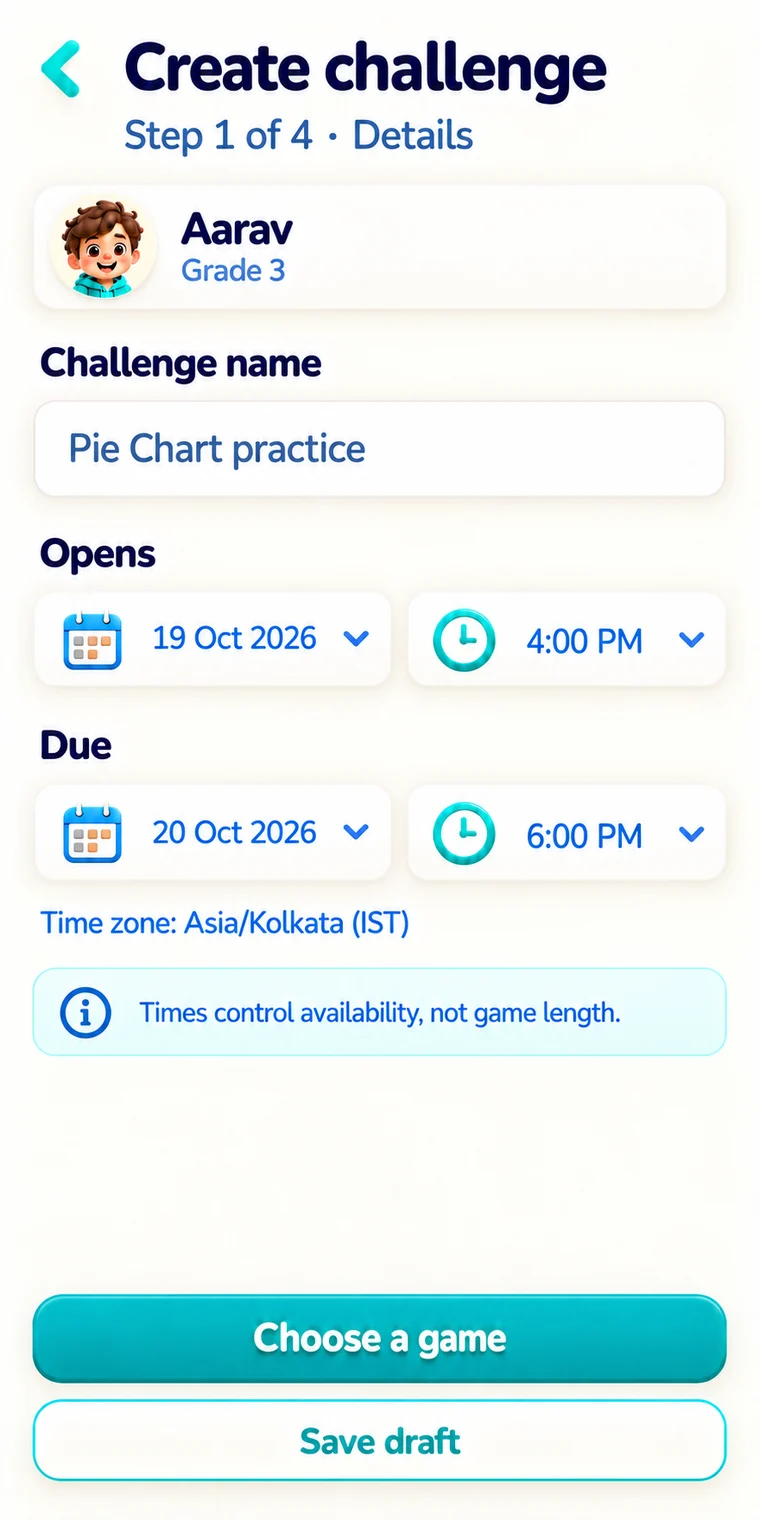
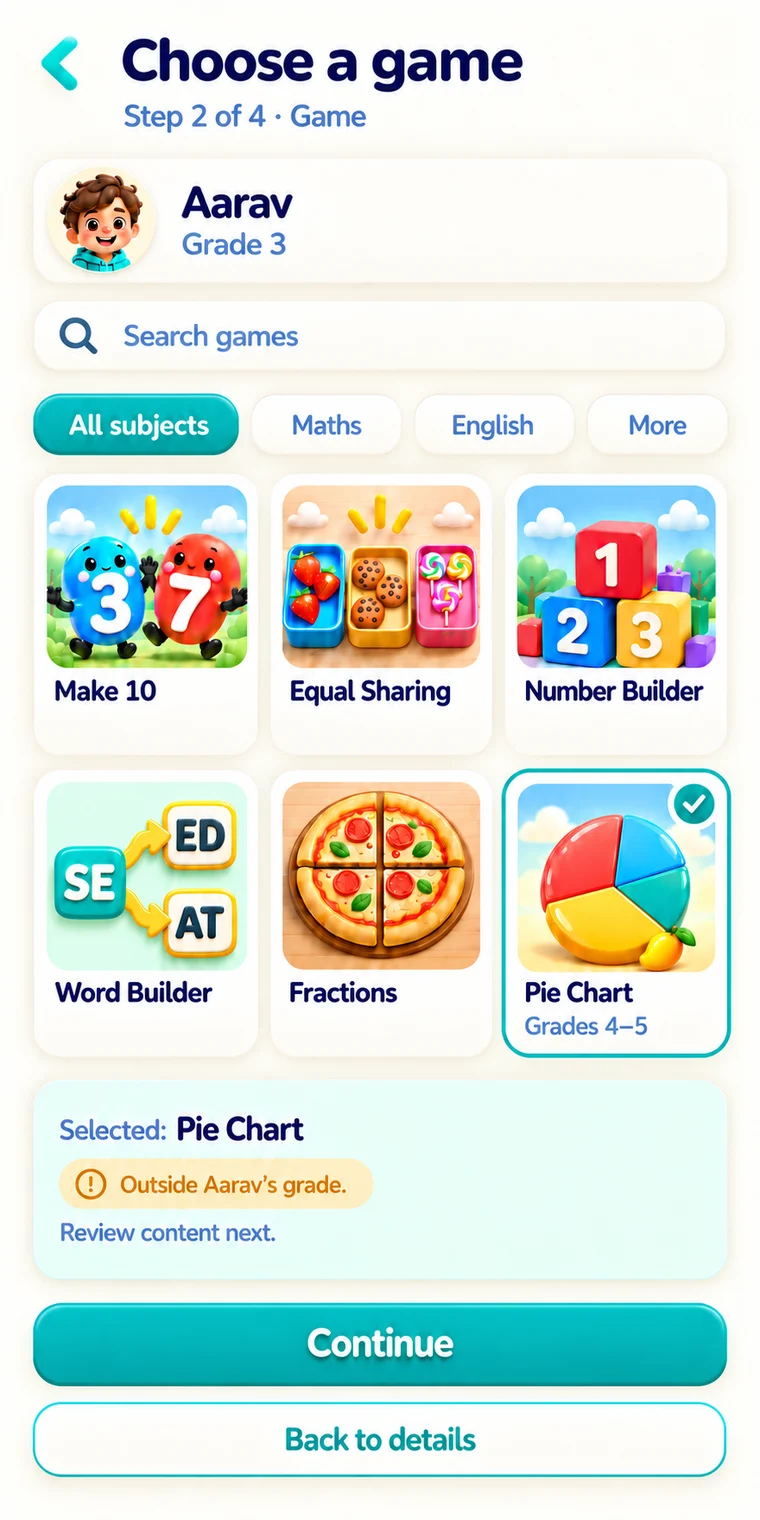
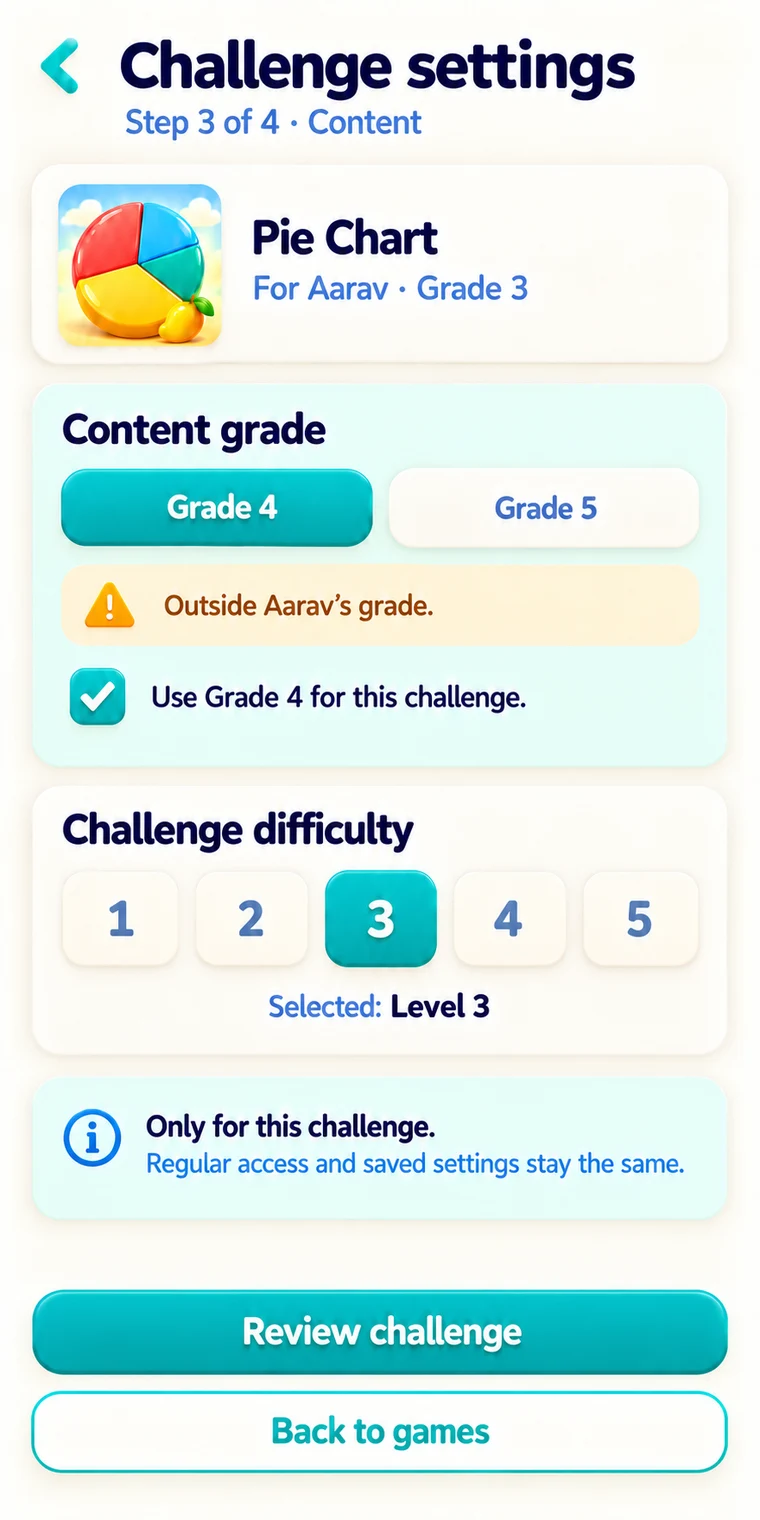
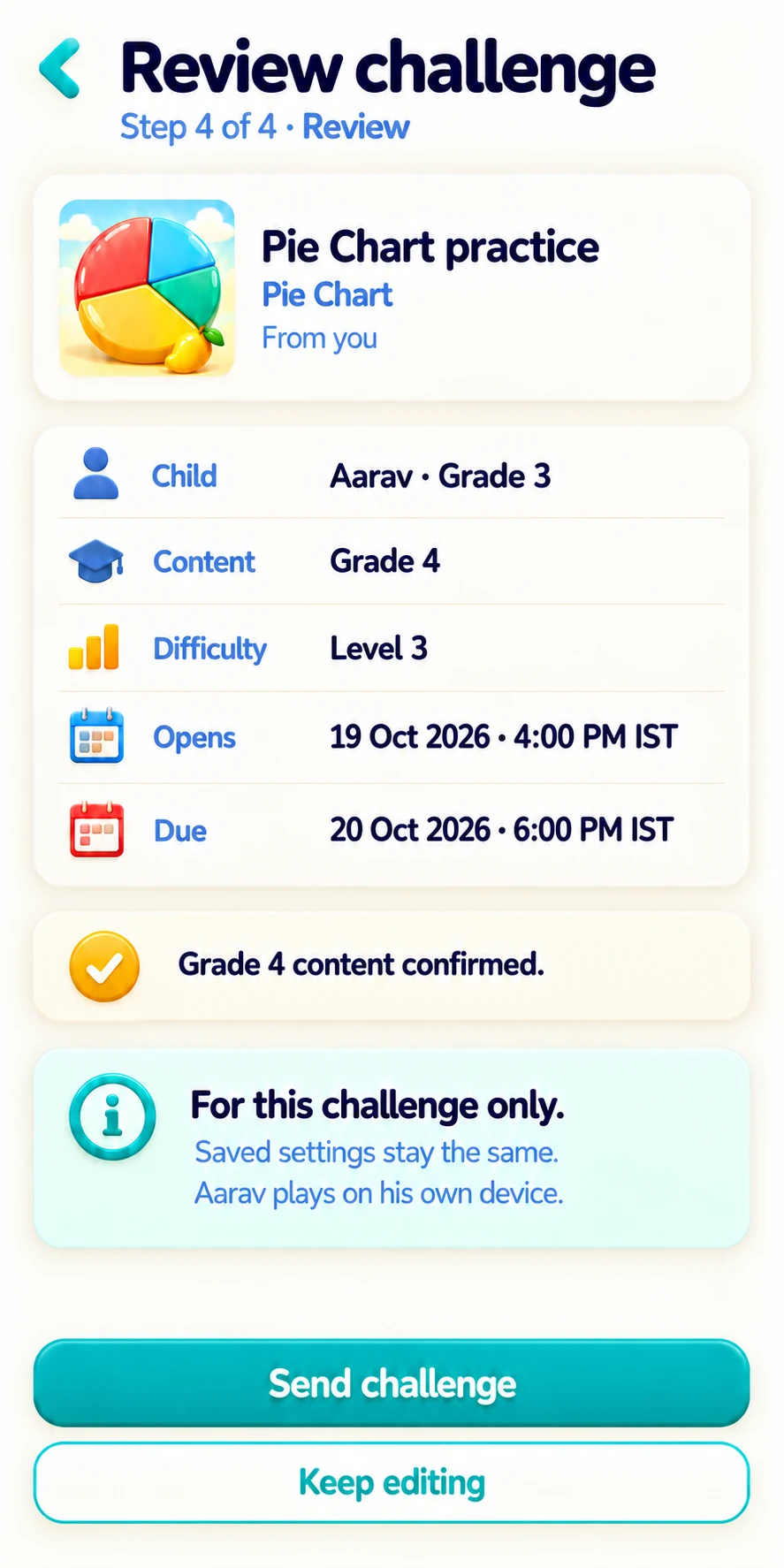
Example parent app screens · Names, games and values are illustrative. Challenge settings apply to that challenge.
PARENT REPORTS
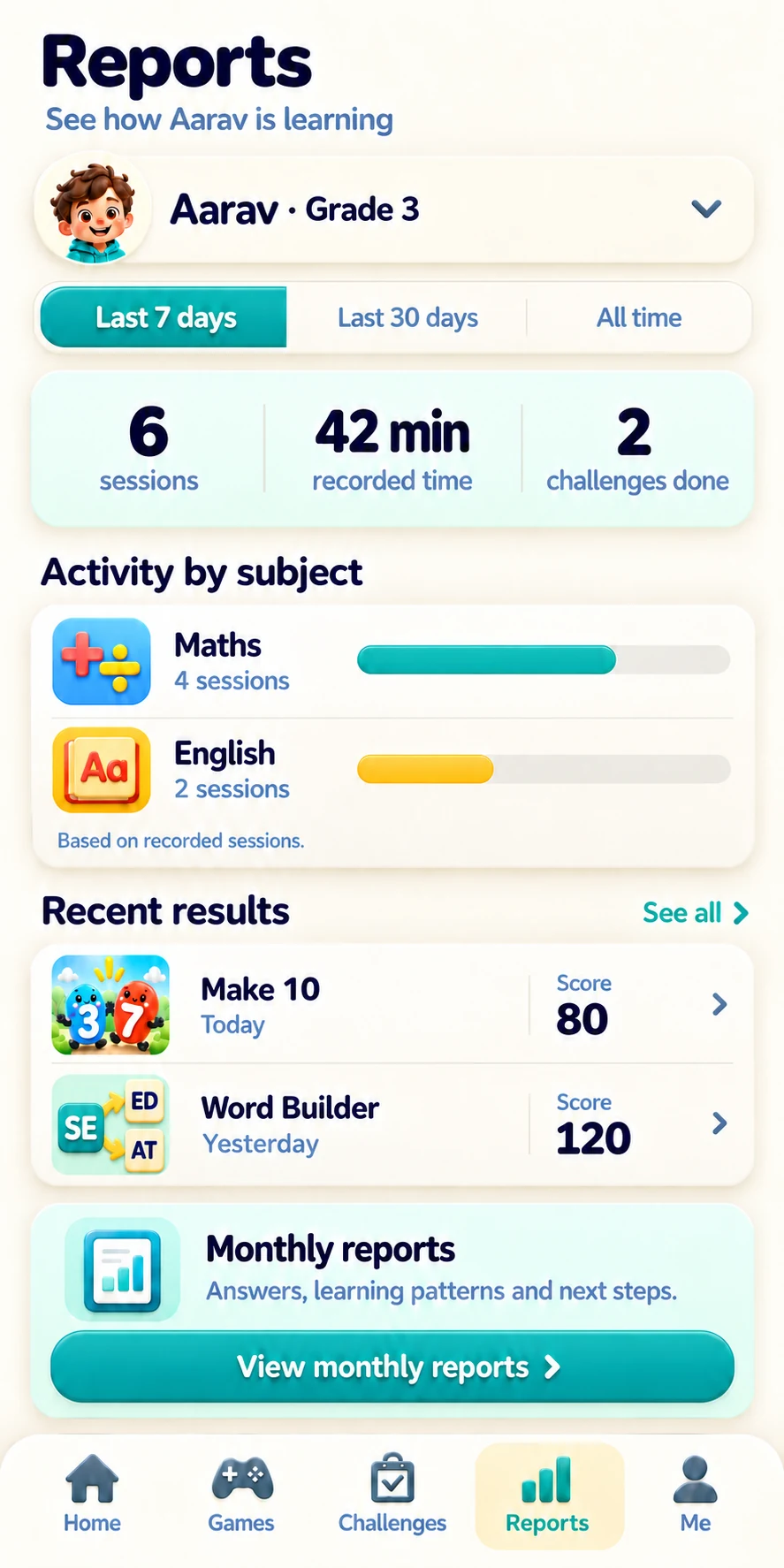
Recorded activity gives you something specific to ask about. Explore subjects, play time and recent game results in the parent view.
“Show me that game.”
“What was tricky?”
“What would you try next?”
Activity and scores describe recorded practice. They do not establish curriculum mastery.
MONTHLY LEARNING REPORTS
Open a saved report for a completed month. Review the answers and skills recorded during play, then choose something to explore together.
Look at correct, incorrect and skipped answers where question-level outcomes were recorded.
See the learning skills linked to the questions your child has practised.
Use the report’s suggested next activities as a starting point for practice and conversation.
Report detail depends on the data recorded during play. Older sessions that saved only a score do not include question-by-question history.
PARENT GAME CONTROLS
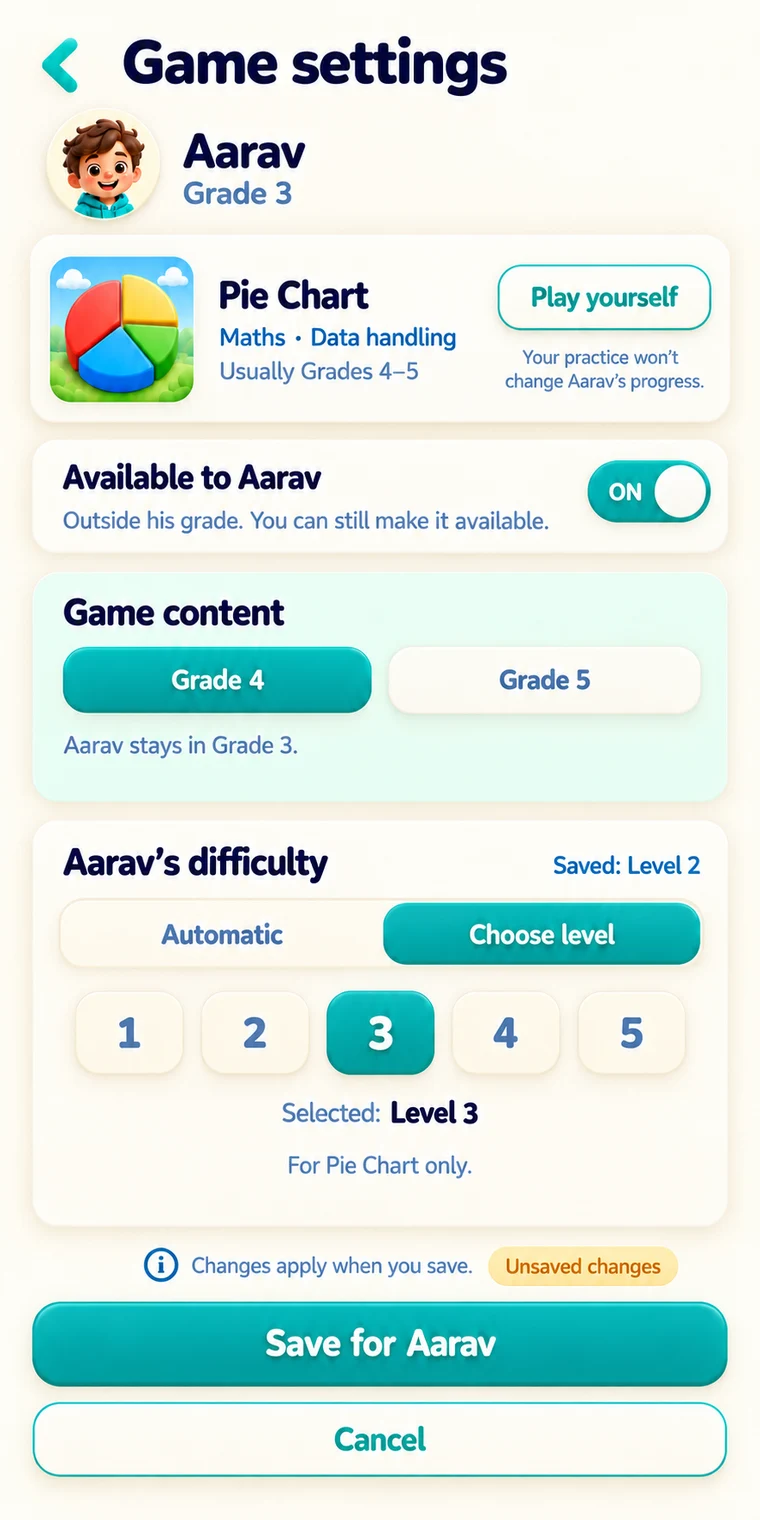
Review each game before making it available to your child. The app keeps regular game settings separate from the settings for a particular challenge.
THE CHILD’S APP EXPERIENCE
Children can choose games, find their next challenge and see their recorded activity in their own TinyNinza view.
Find recent games and personal best scores. The home view also shows activity streaks and the week’s recorded play.
Open in-game Help for a step-by-step example and replay it when needed. How-to examples do not add to the child’s score.
Teacher, parent and TinyNinza challenges appear together with their source shown. Some challenges include a leaderboard.
MULTIPLAYER IN SELECTED APP GAMES
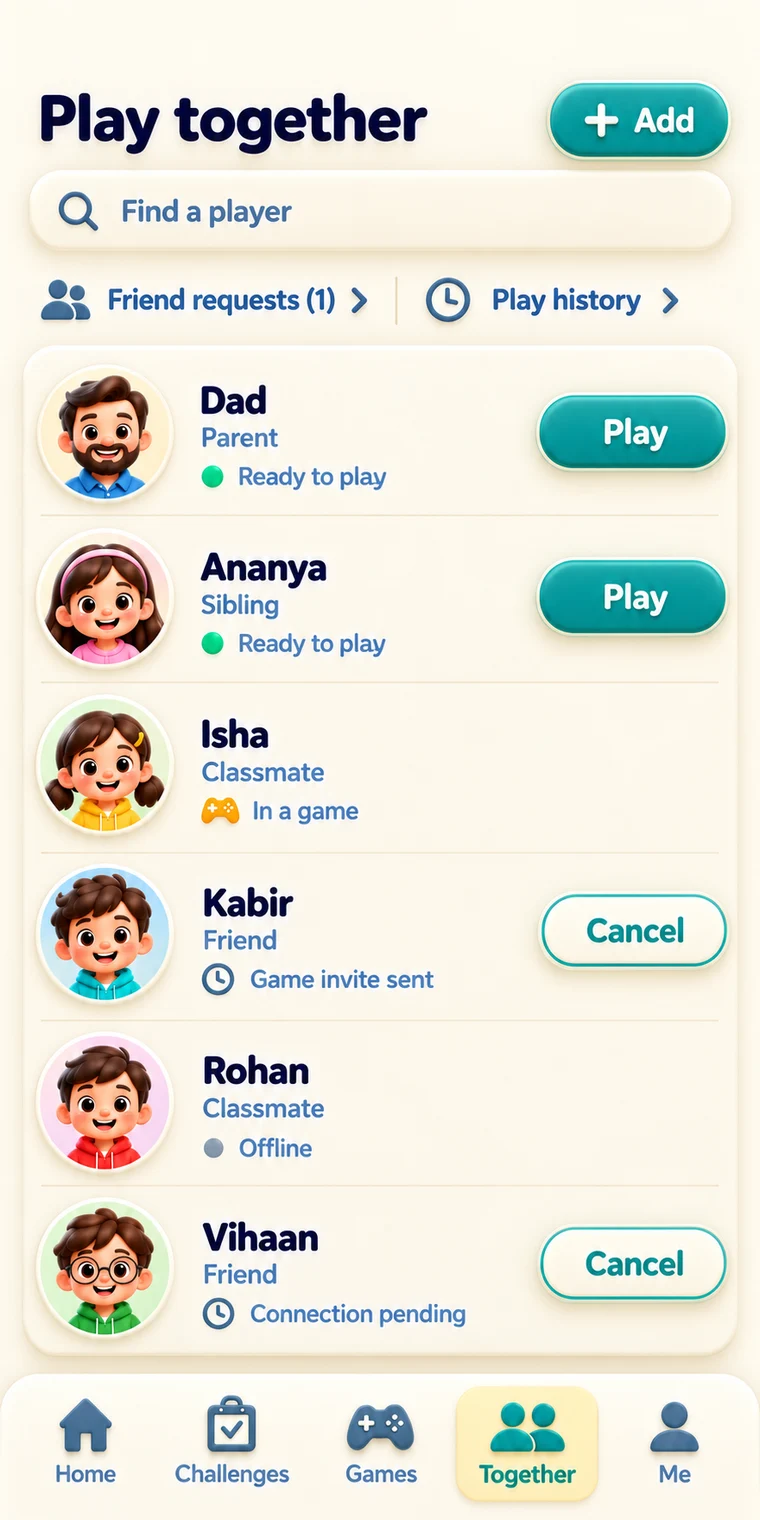
Parents, siblings, friends and classmates can play selected games together. Each player joins from a separate device.
Compare approaches, talk about a choice and let your child show you what they noticed.
Multiplayer is part of selected TinyNinza app games. Website practice is single-player.
LEARNING AT HOME
Choose a familiar topic, look at the game together and let your child explain their approach. Grade ranges help you find a starting point.
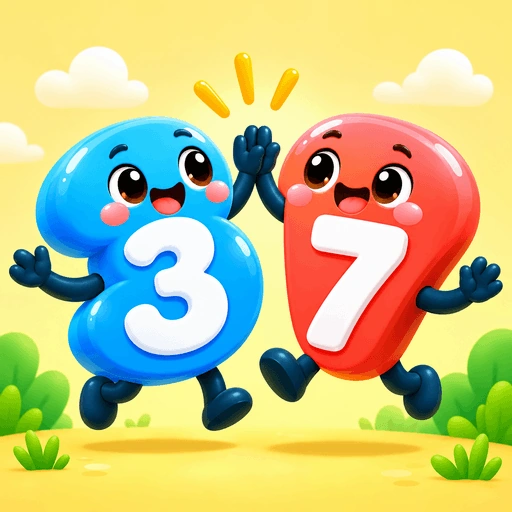
NUMBER BONDS · Grades 1–2
Find two numbers that make ten, then look for another combination.
“Can you find another way to make ten?”
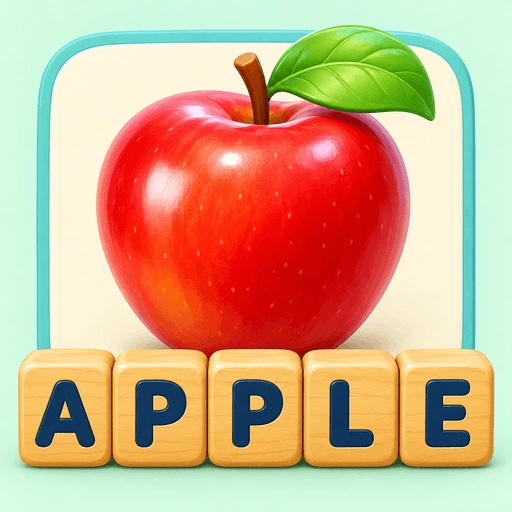
SPELLING · Grades 1–3
Name a pictured object and arrange the letter tiles to spell it.
“Which letters helped you work out the word?”
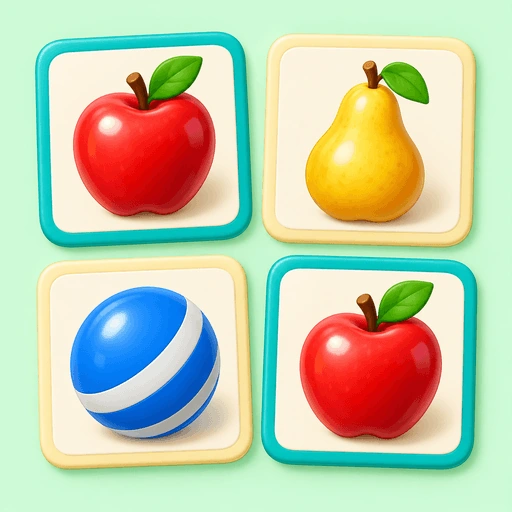
OBSERVATION · Grades 1–5
Compare the pictures and find the pair that is exactly the same.
“What did you notice first?”
TWO WAYS TO GET STARTED
Anonymous website practice does not save to a TinyNinza app account.
Browse learning gamesParents and students use the app. Teacher and school tools use their own dashboards.
PRACTICAL QUESTIONS
The library is designed for Grades 1–5. Individual games have their own grade ranges; use these as a starting point when choosing a suitable task.
Yes. Available website games can be tried without signing in. Read the instructions and choose a skill your child is practising.
No. Anonymous website practice does not save to a TinyNinza app account. Reports show activity recorded in the account-based experience.
The parent app lets you choose a game, review its challenge settings and send it to your child to complete on their own device.
Add or link your children in the parent app, then switch between them. Each child has their own challenges, game settings and recorded reports.
Selected app games support multiplayer on separate devices. The available games and invitation flow are shown in Play together.
The activity overview shows recorded subjects, play time and scores. Monthly reports add recorded answer outcomes, practised learning elements and suggested next activities where the data is available. Older score-only sessions do not contain question-level history.
A simple question can turn a game into a shared moment.